
When I switched to a standing desk for the first time many years ago, I spent quite a bit of time adjusting the height of the desk. I kept my elbow at about 90 degrees, relaxed my shoulder, and straightened my wrist. That part seemed simple and clear. What I missed was the monitor. In my experience, the height of the monitor is just as important as the height of the desk. If you make a mistake, you end up with neck pain, eye fatigue, headaches, and a humpback that you have been trying to avoid at your standing desk.
I’ve seen this pattern many times in validating different standing desk setups. People raise their desks, but the monitors stay low on standard stands and work for hours looking down. After experimenting with different standing desk setups and exchanging ideas with colleagues who had made the same switch, I realized that the overall set-up would often be comfortable or simply replace one problem with another, depending on the position of the monitor.
In this guide, you’ll learn how to set the right monitor height for a more comfortable, less stressful setup and for sedentary work.
Why standing desk monitor height matters
The height of the monitor directly affects the posture of the head, neck, and shoulders that continue for hours. If the screen is too low, you will be in a position to lower your chin and project your head forward. If it is too high, you will be in a position to tilt your head back. Both positions can strain the neck muscles and cause a lump in the upper back or shoulders at the end of the day.
From what I have seen in most of the telecommuting environments I’ve reviewed, if the viewing angle is out of place, or if the screen is too close or too far, eye strain will gradually build up. With the right placement, you can keep your neck close to neutral and your eyes resting at a natural downward angle, reducing the constant tweaks that pile up over long working hours. After years of practicing ergonomic recommendations, I realized that setting the correct position of the monitor would make the standing task more sustainable rather than tiring.
What is the ideal height of a monitor in a standing desk?
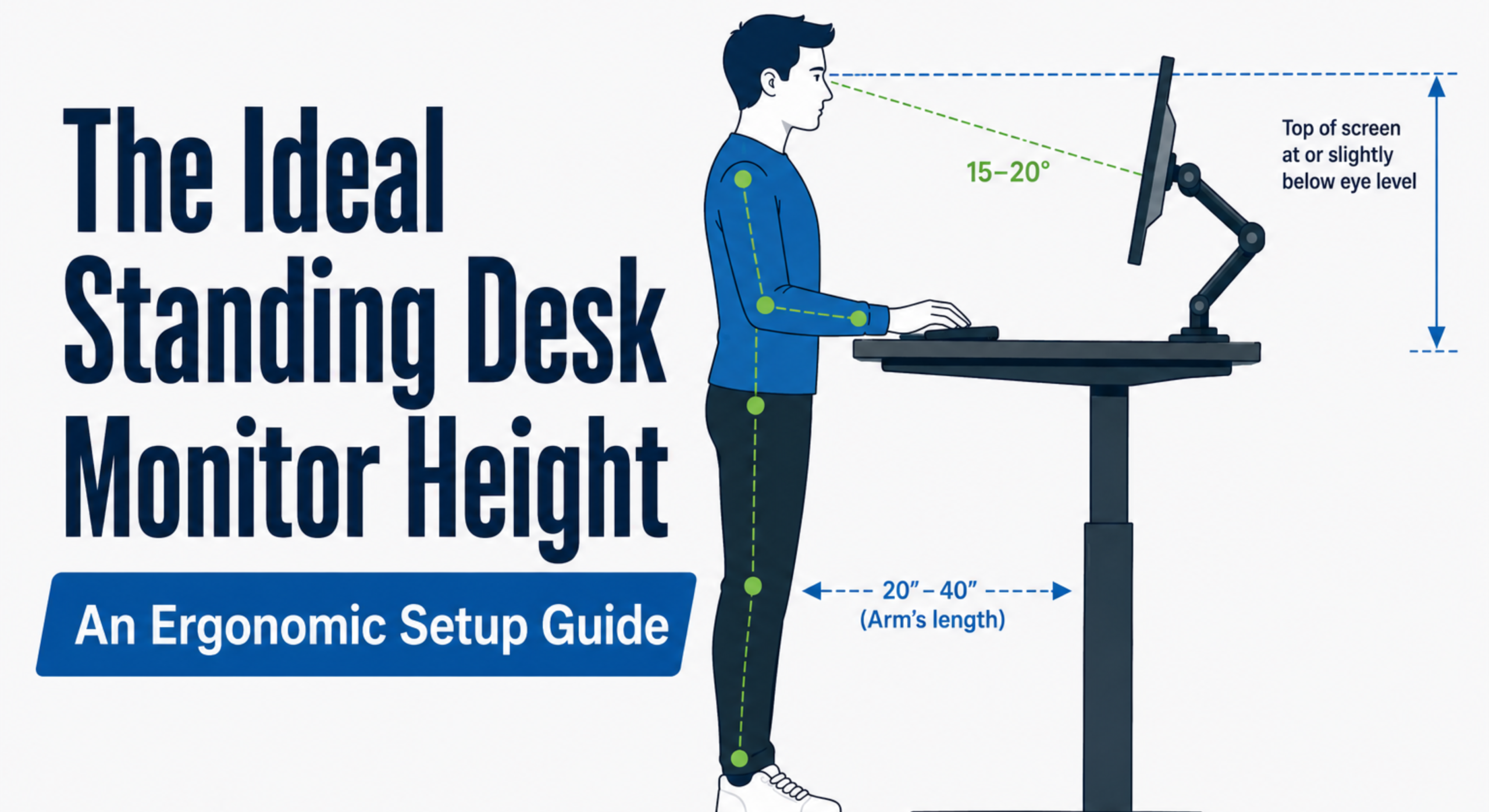
A simple rule that was consistently valid in my tests was to set the top edge of the screen to eye height or slightly below it. This keeps the neck in a neutral position and eliminates the need to look up and down at all times. The Occupational Safety and Health Administration’s (OSHA) guidance on computer workstations provides a similar explanation. The top edge of the monitor is placed at or below eye level, and the center of the screen is placed about 15 to 20 degrees below the horizontal line of sight.
The viewing distance is generally in the range of 20 to 40 inches, depending on the arm length, screen size, and vision. Cornell University’s ergonomics materials often point to arm length as a practical measure. Tilting the screen slightly backwards (about 10-20 degrees) will make the entire display more evenly facing you.
If you are using bifocal glasses or a progressive multifocal lens, you may need to lower the monitor a bit so that you can see through the near part of the lens without tilting your head back. I noticed that this adjustment made a big difference for people who would otherwise feel tension in their neck in about 1-2 hours.
How to adjust your monitor for optimal ergonomic environments?
Set the correct desk and monitor height: Let’s start with the height of the desk. Straighten your back, relax your shoulders, and bend your elbows to about 90 degrees so that your forearms are parallel to the floor. Make sure that your desktop is at this height (or slightly lower). Once the desk is set, raise and lower the monitor so that the top edge of the monitor is at or slightly below eye level. With the monitor arm, it is much easier to adjust than stacking books or relying on the included stand.
Position the monitor at the right distance and angle: Next, adjust the distance. When you stretch your arm, the distance between your fingertips and the screen is a guide. Place the monitor directly in front of you so you don’t twist your neck. Tilt the screen slightly back so that the bottom edge of the screen is in front of the top edge. After that, check the keyboard and mouse. The wrist should be straight, and the elbow should be in a position that allows it to remain close to 90 degrees.
Perform a final posture check: The final posture check I do every time is to put my feet flat on the floor (use a footrest if necessary), relax my shoulders, put my head on my spine in a balanced manner, and keep my eyes close to one-third of the screen. Adjusting this slightly often relieves the remaining discomfort you may feel during the first few days of standing.
Common mistakes about Monitor height to avoid on Standing desks
One of the most common errors I see is that the monitor is too high.If you raise your desk and leave the monitor elevated, you’ll have to look up. The opposite problem, which is even more common when the monitor is too low, can lead to a frontal-leaning posture that stiffens the neck and upper back.
Sitting, standing, and moving too close to the monitor strain the eyes and make them more likely to stoop.If the distance is too far, you will stoop forward to read letters. Laptop users who don’t raise their screen height or add an external keyboard or mouse will almost invariably work with their heads down for hours.
For dual monitors, a common mistake is to set both screens to the same height and angle without having the main monitor centered. This will force you to constantly swing your head from side to side. I made these mistakes a few times in my early days, but soon I realized that it was a burden on my neck.
Adjust monitor height in standing desks by user type
The right monitor height can vary depending on your height, the type of screen you use, and whether you wear eyeglasses. A setup that works well for one person may not feel comfortable for another, so small adjustments can make a noticeable difference.
- Laptop users
Laptop users typically need a stand or riser, plus a separate keyboard and mouse to align the screen to eye level.
- External monitor users
External monitor users are more flexible, especially with a good monitor arm, but they still need to raise the screen when raising the desk.
- Dual-monitor configuration
In a dual-monitor configuration, it is best to center the main screen and tilt the sub screen slightly inward at the same height.
- Tall users
Tall users often need a stand with a wide range of arm and riser settings, while short users may be able to handle a standard stand well if the desk is set up properly.
- People who wear eyeglasses
People who wear eyeglasses, especially progressive multifocal lenses, generally find it more comfortable to set the screen a little lower so that they can use the appropriate portion of the lens without having to place their heads in an awkward position. In actual use, these minor differences are more important than the general eye-level advice.
A quick ergonomic checklist before you start
- The top edge of the screen is slightly below or above eye level
- The screen is about the distance of stretching one arm
- Relax your shoulders and don’t turn round
- The elbow is close to 90 degrees
- The wrist is straight
- Feet are placed flat on the floor or footrest
- Try to change one’s posture throughout the day
Check out this checklist in less than a minute. By doing so, you can avoid most problems before they become fixed.
Frequently asked questions
Should the top edge of the monitor be at eye level?
Yes. Keep your eyes up or down a bit. By doing so, you can keep your neck neutral. Looking up for a long time is more tiring than looking down.
How far should the monitor be from the eyes?
They are about the length of an arm, often 20 to 40 inches. Don’t lean forward or squint, and adjust until you can see clearly. If the screen is large, it is more comfortable to leave it a little behind.
Can I reduce neck pain by adjusting the height of the monitor?
In many cases, yes. Setting it at the right height can reduce the persistent bending and stretching that puts strain on the neck muscles. Combined with regular posture changes, this is one of the most practical measures.
Final thoughts on standing desk monitor height
Properly adjusting the height of the monitor is one of the most effective adjustments you can make on a standing desk. In my experience, this single change often provides more lasting comfort than any other tweaks. After years of comparing dozens of different setups, I raised the screen so that the top edge of the screen is at or slightly below eye level. They found that small, intentional adjustments, such as lowering the arm slightly and tilting it a little, can relieve neck strain and eye strain within a few days.
Don’t think of your setup as “fixed”. Check it every few weeks, or whenever you change equipment or shoes or change the time of standing. The posture check takes less than a minute and can prevent old habits from settling down again. An ergonomic workspace that supports a neutral posture not only reduces discomfort, but also helps you stay focused and productive throughout the long working hours.

Aamir Riaz is the founder and owner of Bashufy. After years of working with uncomfortable desks and learning the importance of better posture, he shares honest standing desk reviews, buying guides, and ergonomic tips based on research and real user experiences to help readers make better choices for their home office setup.